

Quickstart#
ManiSkill is a robotics simulator built on top of SAPIEN. It provides a standard Gym/Gymnasium interface for easy use with existing learning workflows like reinforcement learning (RL) and imitation learning (IL). Moreover, ManiSkill supports simulation on both the GPU and CPU, as well as fast parallelized rendering.
We recommend going through this document first and playing with some of the demos. Then for specific applications we recommend the following:
To get started with RL follow the RL setup page.
To get started with IL follow the IL setup page.
To learn how to build your own tasks follow the task creation tutorial.
Interface#
Here is a basic example of how to run a ManiSkill task following the interface of Gymnasium and executing a random policy with a few basic options
import gymnasium as gym
import mani_skill.envs

env = gym.make(
    "PickCube-v1", # there are more tasks e.g. "PushCube-v1", "PegInsertionSide-v1", ...
    num_envs=1,
    obs_mode="state", # there is also "state_dict", "rgbd", ...
    control_mode="pd_ee_delta_pose", # there is also "pd_joint_delta_pos", ...
    render_mode="human"
)
print("Observation space", env.observation_space)
print("Action space", env.action_space)

obs, _ = env.reset(seed=0) # reset with a seed for determinism
done = False
while not done:
    action = env.action_space.sample()
    obs, reward, terminated, truncated, info = env.step(action)
    done = terminated or truncated
    env.render()  # a display is required to render
env.close()
Changing num_envs to a value greater than 1 will automatically turn on the GPU simulation mode. More quick details covered below.
You can also run the same code from the command line to demo random actions and play with rendering options
# run headless / without a display
python -m mani_skill.examples.demo_random_action -e PickCube-v1
# run with A GUI and ray tracing
python -m mani_skill.examples.demo_random_action -e PickCube-v1 --render-mode="human" --shader="rt-fast"
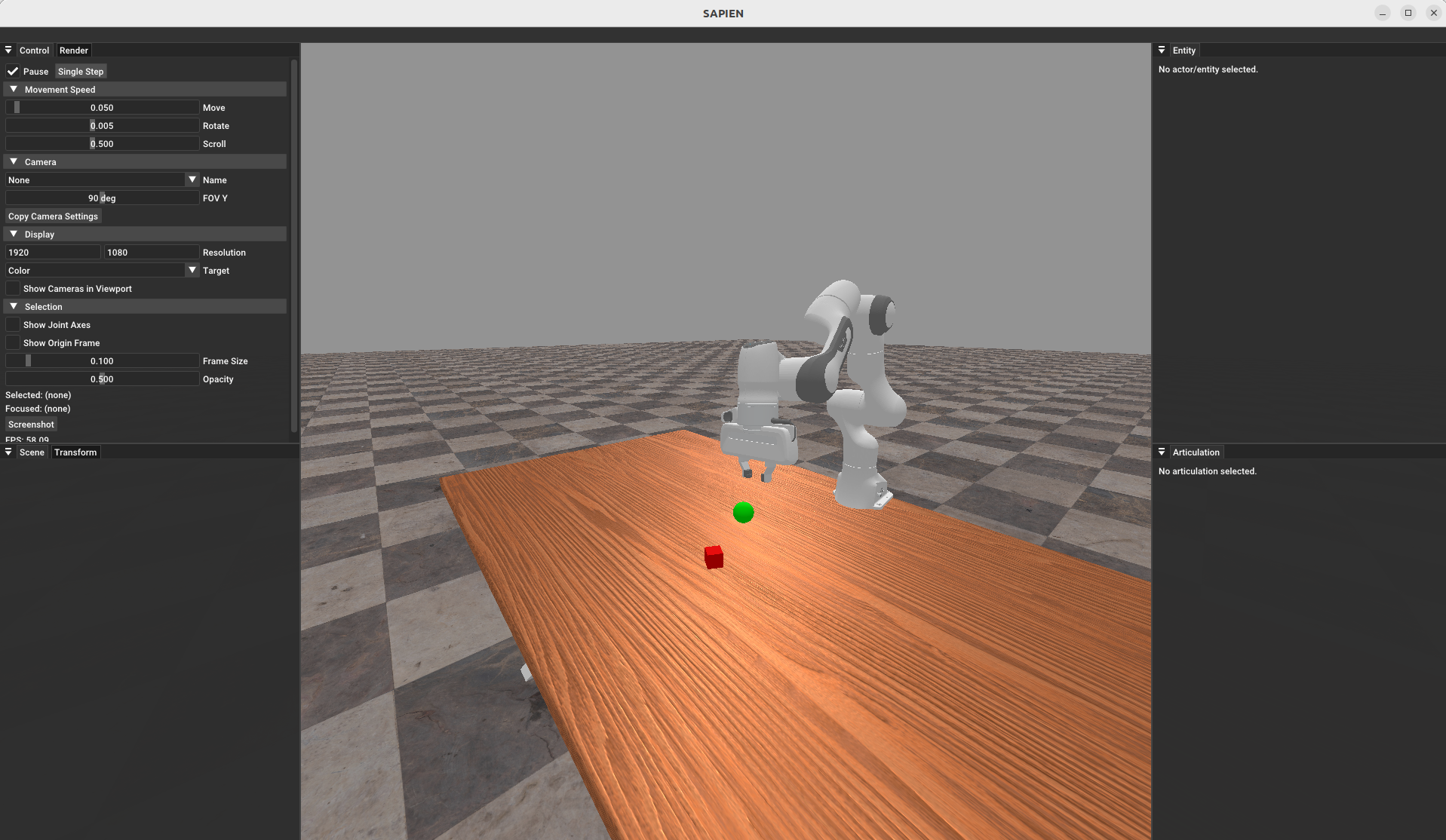
Running with render_mode="human" will open up a GUI, shown below, that you can use to interactively explore the scene, pause/play the script, teleport objects around, and more.
You will also notice that all data returned is a batched torch tensor. To reduce extra code handling numpy vs torch, cpu vs gpu sim, everything in ManiSkill defaults to serving/using batched torch tensors of all data. To change the environment to serve numpy, unbatched data simply do the following
from mani_skill.utils.wrappers.gymnasium import CPUGymWrapper
env = gym.make(env_id, num_envs=1)
env = CPUGymWrapper(env) # this also completely implements standard Gymnasium Env interface
obs, _ = env.reset() # obs is numpy and unbatched
To have the exact same API defined by gym/gymnasium for single/vectorized environments, see the section on reinforcement learning setups.
For a compilation of demos you can run without having to write any extra code check out the demos page
See mani_skill.envs.sapien_env for the full list of environment instantiation options.
GPU Parallelized/Vectorized Tasks#
ManiSkill is powered by SAPIEN which supports GPU parallelized physics simulation and GPU parallelized rendering. This enables achieving 200,000+ state-based simulation FPS and 30,000+ FPS with rendering on a single 4090 GPU on a e.g. manipulation tasks. The FPS can be higher or lower depending on what is simulated. For full benchmarking results see this page
In order to run massively parallelized tasks on a GPU, it is as simple as adding the num_envs argument to gym.make as follows:
import gymnasium as gym
import mani_skill.envs

env = gym.make(
    "PickCube-v1",
    obs_mode="state",
    control_mode="pd_joint_delta_pos",
    num_envs=16,
)
print(env.observation_space) # will now have shape (16, ...)
print(env.action_space) # will now have shape (16, ...)
# env.single_observation_space and env.single_action_space provide non batched spaces

obs, _ = env.reset(seed=0) # reset with a seed for determinism
for i in range(200):
    action = env.action_space.sample() # this is batched now
    obs, reward, terminated, truncated, info = env.step(action)
    done = terminated | truncated
    print(f"Obs shape: {obs.shape}, Reward shape {reward.shape}, Done shape {done.shape}")
env.close()
Note that all values returned by env.step and env.reset are batched and are torch tensors. Whether GPU or CPU simulation is used then determines what device the tensor is on (CUDA or CPU).
To benchmark the parallelized simulation, you can run
python -m mani_skill.examples.benchmarking.gpu_sim --num-envs=1024
To try out the parallelized rendering, you can run
# rendering RGB + Depth data from all cameras
python -m mani_skill.examples.benchmarking.gpu_sim --num-envs=64 --obs-mode="rgbd"
# directly save 64 videos of the visual observations put into one video
python -m mani_skill.examples.benchmarking.gpu_sim --num-envs=64 --save-video
which will look something like this
Parallel Rendering in one Scene#
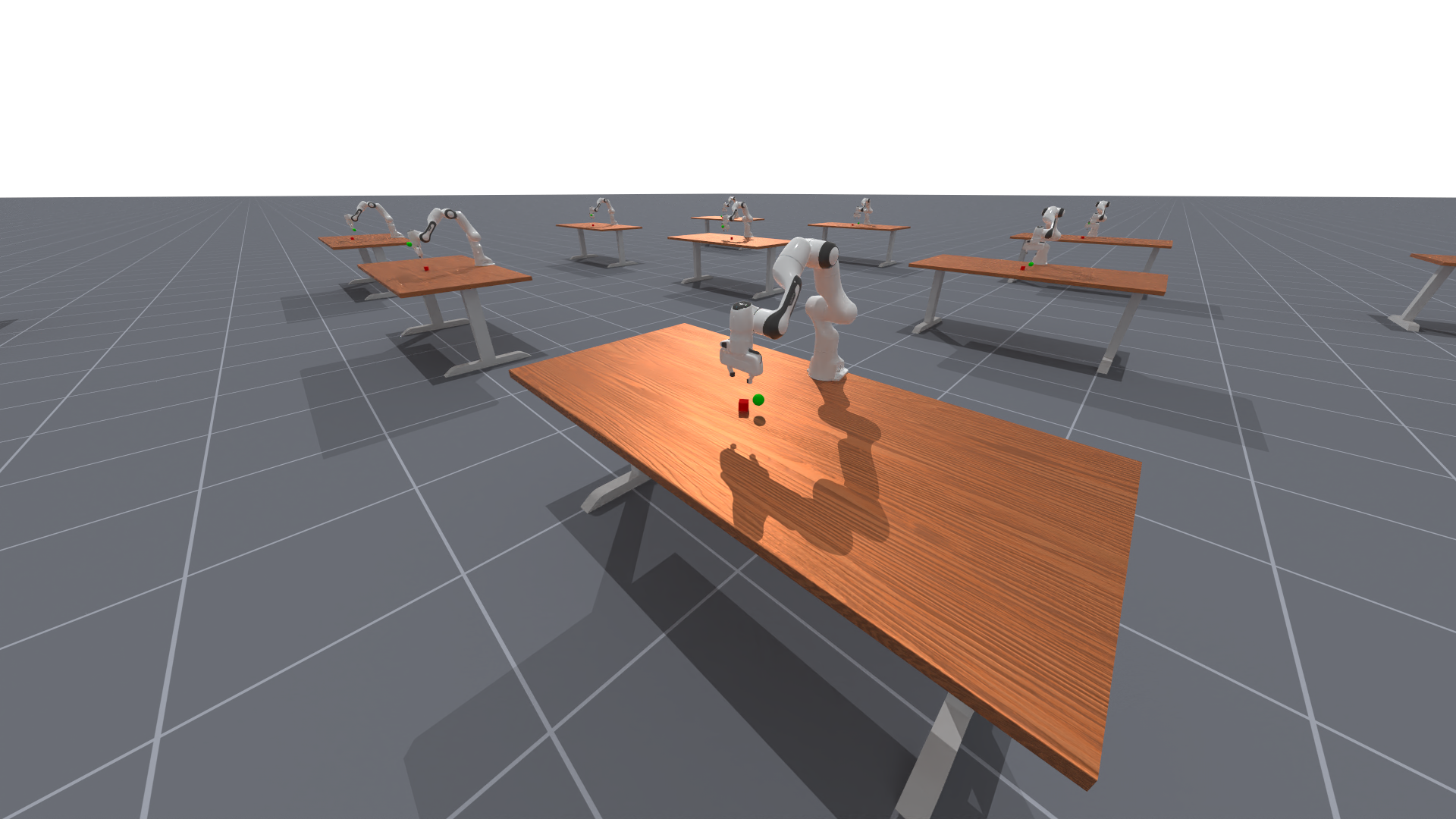
We further support via recording or GUI to view all parallel environments at once, and you can also turn on ray-tracing for more photo-realism. Note that this feature is not useful for any practical purposes (for e.g. machine learning) apart from generating cool demonstration videos.
Turning the parallel GUI render on simply requires adding the argument parallel_in_single_scene to gym.make as so
import gymnasium as gym
import mani_skill.envs

env = gym.make(
    "PickCube-v1",
    obs_mode="state",
    control_mode="pd_joint_delta_pos",
    num_envs=16,
    parallel_in_single_scene=True,
    viewer_camera_configs=dict(shader_pack="rt-fast"),
)
env.reset()
while True:
    env.step(env.action_space.sample())
    env.render_human()
This will then open up a GUI that looks like so:
Additional GPU simulation/rendering customization#
Finally on servers with multiple GPUs you can directly pick which devices/backends to use for simulation and rendering by setting the CUDA_VISIBLE_DEVICES environment variable. You can do this by e.g. running export CUDA_VISIBLE_DEVICES=1 and then run the same code. While everything is labeled as device “cuda:0” it is actually using GPU device 1 now, which you can verify by running nvidia-smi.
We currently do not properly support exposing multiple visible CUDA devices to a single process as it has some rendering bugs at the moment.
Task Instantiation Options#
For the full list of environment instantiation options see mani_skill.envs.sapien_env. Here we list some common options:
Each ManiSkill task supports different observation modes and control modes, which determine its observation space and action space. They can be specified by gym.make(env_id, obs_mode=..., control_mode=...).
The common observation modes are state, rgbd, pointcloud. We also support state_dict (states organized as a hierarchical dictionary) and sensor_data (raw visual observations without postprocessing). Please refer to Observation for more details. Furthermore, visual data generated by the simulator can be modified in many ways via shaders. Please refer to the sensors/cameras tutorial for more details.
We support a wide range of controllers. Different controllers can have different effects on your algorithms. Thus, it is recommended to understand the action space you are going to use. Please refer to Controllers for more details.
Some tasks require downloading assets that are not stored in the python package itself. You can download task-specific assets by python -m mani_skill.utils.download_asset ${ENV_ID}. The assets will be downloaded to ~/maniskill/data by default, but you can also use the environment variable MS_ASSET_DIR to change this destination. If you don’t download assets ahead of the time you will be prompted to do so if they are missing when running an environment.
Some ManiSkill tasks also support swapping robot embodiments such as the PickCube-v1 task. You can try using the fetch robot instead by running
gym.make("PickCube-v1", robot_uids="fetch")
You may also notice the argument is robot_uids plural, this is because we also support tasks with multiple robots which can be done by passing in tuple like robot_uids=("fetch", "fetch", "panda"). Note that not all tasks support loading any robot or multiple robots as they were designed to evaluate those settings.